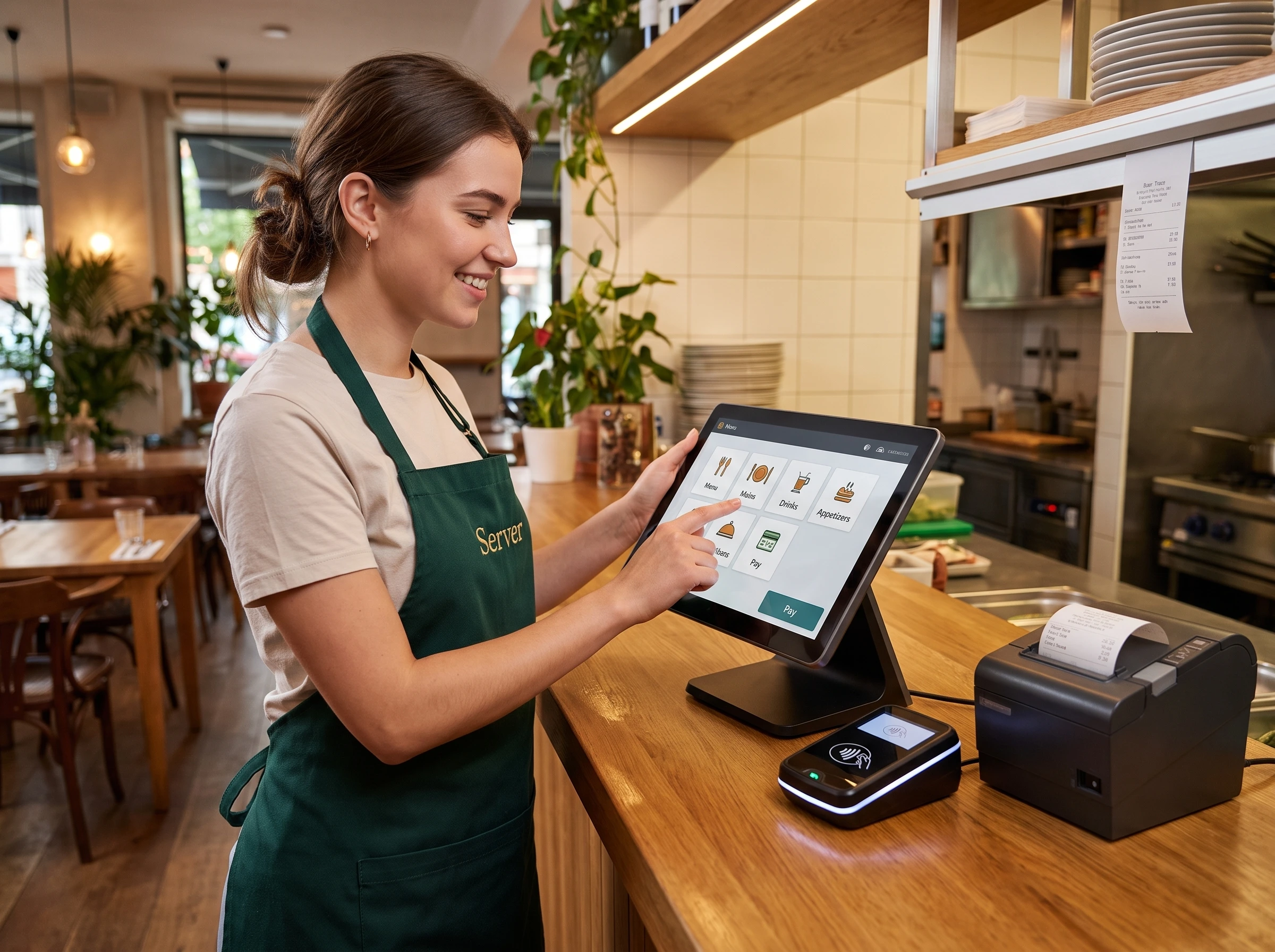
How to Use a POS System in a Restaurant: A Step-by-Step Guide for Staff & Owners
A restaurant POS system is the central hub for taking orders, processing payments, managing tables, tracking sales, and keeping restaurant operations organized. Whether you are a server, cashier, manager, or restaurant owner, knowing how to use the POS correctly can help improve service speed, reduce mistakes, and simplify daily closing.
This guide explains how to use a POS system in a restaurant, from logging in and entering orders to handling payments, refunds, reports, and staff training.
1. Log In and Learn the Dashboard
Most restaurant POS systems require each employee to log in using a PIN, password, card, or key fob. Every staff member should use their own login so managers can track activity and control permissions.
After logging in, take a few minutes to understand the main dashboard.
You should know how to:
Open a new table or order
View existing tickets
Access menu categories
Add or remove items
Check payment options
Navigate between screens
Log out securely
Managers may have access to additional features such as refunds, reports, discounts, and employee settings.
New staff should practice in training or sandbox mode if the POS system offers one.
2. Enter Orders Accurately
Order entry is one of the most important parts of using a restaurant POS.
Start by selecting the correct table, customer tab, or takeaway order. Then choose the items the customer has ordered.
Before sending the order, check:
Item names
Quantities
Prices
Modifiers
Seat numbers
Special requests
For example, if a customer orders a burger without onions and with extra cheese, those instructions should be entered before the order is sent.
Accurate order entry helps reduce mistakes in the kitchen and avoids the need to remake food.
3. Use Modifiers and Special Instructions
Modifiers allow staff to customize menu items based on customer requests.
Common modifiers include:
No onions
Extra cheese
Sauce on the side
Medium rare
Add chicken
No pickles
Extra spicy
Select the menu item first, then apply the required modifier.
For allergy-related requests, employees should also follow the restaurant's food safety procedures and communicate directly with the kitchen when necessary. A POS note alone should not replace proper allergy procedures.
4. Send Orders to the Kitchen
Once the order is correct, send it to the kitchen.
Depending on the restaurant setup, the POS may send orders to a kitchen printer, bar printer, or Kitchen Display System.
A Kitchen Display System can help improve communication between front-of-house and kitchen staff by displaying orders digitally as soon as they are entered.
Some systems can also route different items automatically. For example, drinks may go to the bar while food items go to the kitchen.
Always review the order before sending it because changes after submission may require a void or manager approval.
5. Add Items to an Existing Order
Customers often order additional drinks, desserts, or side dishes after their first order has already been sent.
To add something:
Open the existing table or ticket.
Add the new item.
Apply any modifiers.
Review the entry.
Send the new item to the kitchen or bar.
Make sure you are editing the correct table before adding anything.
6. Review the Bill Before Payment
Before accepting payment, review the customer's bill carefully.
Check that:
All items are correct
No duplicate items were added
Discounts were applied correctly
Taxes are accurate
Service charges are included when required
Voided items have been removed
This final review helps prevent billing problems and unnecessary refunds.
7. Process Payments
Most restaurant POS systems support multiple payment methods, including:
Cash
Credit cards
Debit cards
Mobile wallets
Gift cards
Mixed payments
The usual payment process is simple:
Review the final total.
Apply any discount, loyalty reward, or gift card.
Select the payment method.
Process the transaction.
Wait for confirmation.
Print, email, or text the receipt.
Close the ticket.
For cash payments, confirm the amount received and count the customer's change carefully.
8. Split a Check
Split checks are common in restaurants, especially for larger groups.
Most modern POS systems allow staff to split a bill:
Equally
By item
By seat
By custom amount
Across different payment methods
Before splitting the check, ask customers how they want to divide it.
Using the POS split-payment feature is usually faster and more accurate than calculating separate bills manually.
9. Handle Voids, Refunds, and Comps
Mistakes happen, so employees should understand the restaurant's procedures for correcting them.
An item that has not yet been sent to the kitchen may be easy to remove. However, items already sent may require manager approval.
For refunds, staff may need to:
Find the original transaction
Select the item or payment
Enter a refund reason
Request manager authorization
Process the refund
Complimentary items should usually be recorded as comps instead of being deleted. This keeps sales and inventory records accurate.
Always document the reason for important voids, refunds, or comps.
10. Use POS Reports
Restaurant owners and managers can use POS reports to understand business performance.
Common reports include:
Daily sales
Sales by employee
Sales by menu item
Discounts
Refunds
Voids
Payment totals
Tips
Tax totals
Shift reports
Inventory usage
Reviewing these reports can help managers identify sales trends, staff performance, popular menu items, and operational problems.
11. Complete End-of-Shift Procedures
At the end of a shift, employees should complete the required closing steps.
These may include:
Running a shift report
Reviewing sales
Checking tips
Counting the cash drawer
Reconciling cash
Closing open tickets
Logging out securely
Managers may also review refunds, discounts, voids, and daily totals before closing the business day.
Accurate closing procedures make accounting and reconciliation much easier.
12. Train Staff Properly
A restaurant POS system is only useful when staff know how to use it confidently.
Good training should include:
Opening and closing orders
Entering menu items
Using modifiers
Sending orders to the kitchen
Taking payments
Splitting checks
Applying discounts
Correcting mistakes
Closing shifts
New employees should practice common scenarios before using the system during a busy service.
POSflow also provides onboarding and staff training with RestaurantOS plans, helping teams become familiar with their setup.
Common POS Mistakes to Avoid
Some of the most common restaurant POS mistakes include:
Selecting the wrong table
Entering duplicate items
Forgetting modifiers
Sending an order too early
Using another employee's login
Applying the wrong discount
Entering the wrong cash amount
Forgetting to close a ticket
Failing to record refund reasons
Most of these mistakes can be reduced with proper training and clear procedures.
What Should You Look for in a Restaurant POS System?
If you are choosing a new POS platform, look for features that support your restaurant's daily workflow.
Important features may include:
Fast order entry
Menu modifiers
Table management
Split payments
Kitchen Display System support
Inventory management
Employee permissions
Sales reports
Offline functionality
Easy staff training
If you are comparing different options, read our guide to choosing a POS system for a small business to learn more about the features that matter most.
Final Thoughts
Learning how to use a POS system in a restaurant is about more than processing payments. A good POS workflow helps staff enter orders correctly, communicate with the kitchen, manage tables, take payments, and complete daily reconciliation.
The key is consistency. Staff should know exactly how to open an order, add modifiers, send items, process payments, correct mistakes, and close their shifts.
With proper training and clear procedures, your POS can become an important tool for improving restaurant efficiency and customer service.
Want to see these workflows in one platform? Explore POSflow RestaurantOS for restaurant billing, table management, split payments, kitchen operations, reporting, and more.
You can also compare RestaurantOS plans and pricing to find the right option for your restaurant.