What Is a POS System? How It Works, Types, Features, and Costs
A POS system is the combination of tools a business uses to ring up sales, accept payments, and record what was sold. It usually includes software and may include equipment such as a register, card reader, or receipt printer. In short, it helps a business complete a purchase and keep track of the transaction.
What Does POS Stand For?
POS stands for “point of sale.” It means the time and place where a customer pays for a product or service. When people ask “what is POS,” they may mean either this checkout moment or the system a business uses to manage it.
How Does a POS System Work?
A POS system guides a sale from the moment an employee enters an order to the moment the business records it. The exact steps vary by business, but a typical transaction follows this flow:
The order is entered. A cashier scans products, selects items on a touchscreen, or enters a service or custom amount.
The total is calculated. The system adds prices and applies relevant taxes, discounts, or fees.
The customer pays. The business accepts a supported payment method, such as cash, a card, or a mobile wallet. Card payments are generally handled with a payment processor.
The sale is completed. The system records the payment and can provide a printed or digital receipt.
Business records are updated. Depending on the setup, the POS may update inventory, sales reports, and customer records.
A POS transaction is the recorded purchase: what was sold, how much it cost, how the customer paid, and other details the system is set up to capture. That record gives the business a consistent way to review sales and reconcile its day-to-day activity.
The POS can also connect checkout to other business tasks. For example, selling a stocked item may reduce its recorded quantity, while a restaurant order may be sent to a kitchen display or printer. What happens automatically depends on the system’s features and configuration. For a practical walkthrough, see how to use a POS system in a restaurant.
Key Components of a POS System
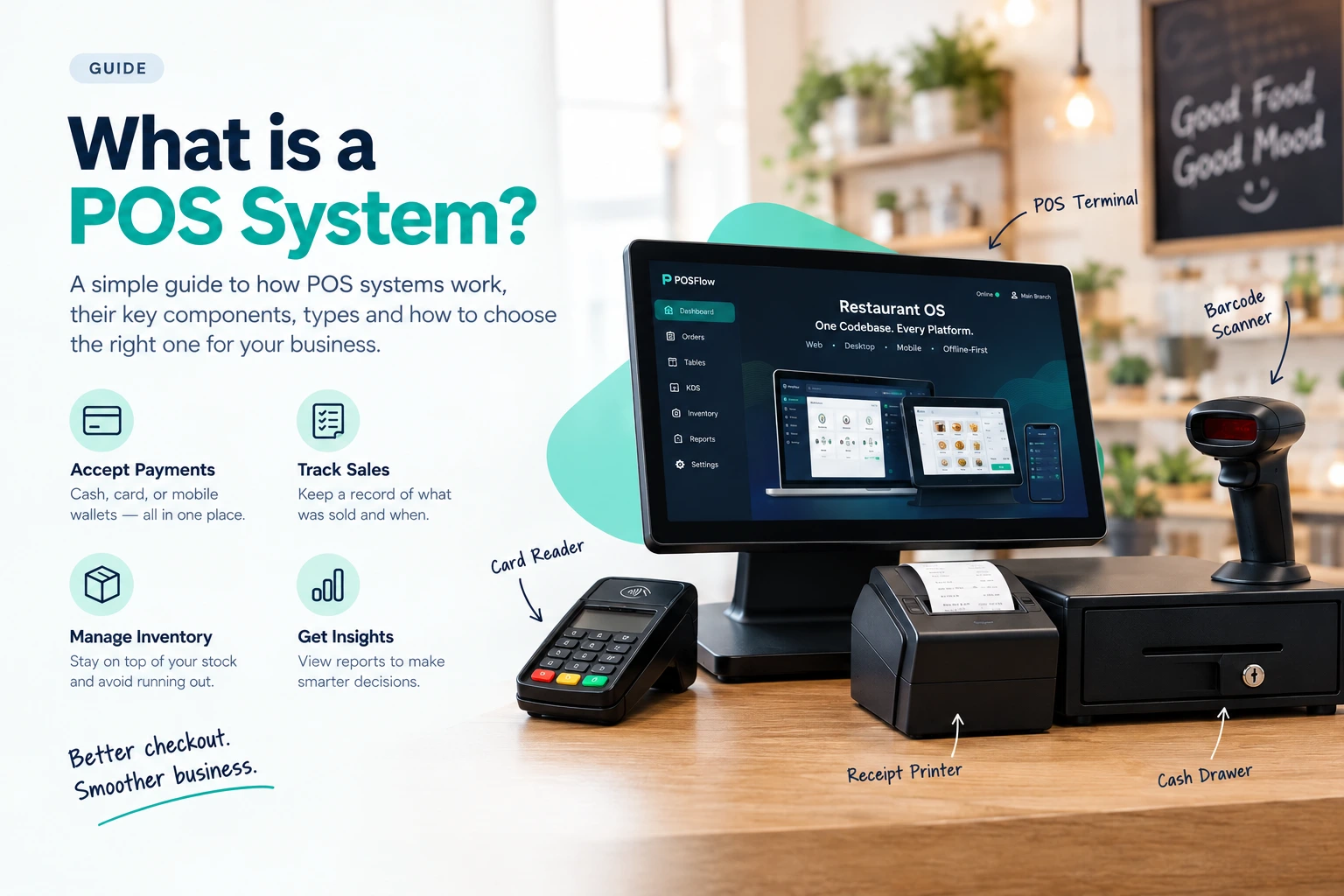
A POS setup has two broad parts: hardware and software. A small business might use a dedicated checkout terminal, or a tablet and a few connected devices.
Hardware
Hardware is the physical equipment used to enter orders and take payments. Common components include:
Terminal or device: A register, computer, tablet, or phone where an employee views and enters sales.
Payment reader: A device for accepting card or contactless payments.
Receipt printer: A printer for paper receipts, order tickets, or kitchen slips.
Barcode scanner: A tool that reads product codes to add items quickly and accurately.
Cash drawer: A secure drawer for cash payments, often connected to a register.
Not every business needs every device. A service provider may need little more than a tablet and payment reader, while a busy shop may benefit from a scanner, printer, and cash drawer.
Software
POS software is the program that records sales and manages checkout. Depending on the product, it may also support:
Billing and checkout: Adding items, calculating totals, applying discounts, and recording payments.
Inventory management: Keeping a count of products and showing when stock is low.
Sales reporting: Summarizing sales by date, product, employee, or location.
Customer records: Saving contact details, purchase history, or loyalty information when appropriate.
Business integrations: Connecting the POS to tools such as accounting, online ordering, or customer relationship management systems.
The term point of sale software usually refers to the software side of the setup. A business should check which features are included in its plan and which depend on add-ons, integrations, or a particular payment provider.
Types of POS Systems
POS systems differ in where they run, how they connect, and how staff use them. The right type depends on a business’s locations, internet access, workflow, and equipment.
Traditional or On-Premise POS
A traditional system runs mainly on equipment at the business, such as a register or local server. It may suit a business that prefers local control or has a fixed checkout setup. However, hardware maintenance, backups, and upgrades may require more hands-on attention, depending on the system.
Cloud-Based POS
A cloud-based system stores or processes much of its business data through internet-connected services. Owners may be able to access reports remotely, and changes can sync between supported devices or locations. It relies on connectivity for some functions, so it is important to understand what happens if the internet goes down.
Our guide to cloud-based restaurant POS systems explains how cloud access and offline billing can work together.
Mobile POS
A mobile POS lets staff take orders or payments on a phone or tablet. It can be useful for tableside service, pop-up shops, markets, or businesses where customers do not always pay at a fixed counter. A mobile device can also be part of a larger setup with printers and other equipment.
Offline-Capable POS
Some systems can keep selected functions available during an internet interruption and sync records after the connection returns. “Offline” does not necessarily mean every feature or payment method will continue working: limits can vary by provider, device, and payment setup. Ask which transactions can be accepted offline, what data is stored, and what happens if a queued payment is later declined.
POS System for Different Business Types
A POS should fit the way a business sells. A system designed around one kind of checkout may not handle another business’s day-to-day tasks as smoothly.
Restaurants
Restaurants often need a way to manage menus, modifiers, table orders, and payments, as well as route orders to the kitchen. Some also need functions for reservations, delivery, or multiple service areas. A restaurant POS can help coordinate the front counter, dining room, and kitchen, but owners should confirm that the system supports their specific service style.
For more on connecting these operations, read what a restaurant operating system is.
Retail Shops
Retail stores may need barcode scanning, product variants such as size and color, stock counts, and returns or exchanges. If the store sells both in person and online, it may also need inventory and order information to stay consistent across channels.
As an example of a single-store system, POSflow Retail POS supports offline barcode billing, stock tracking, and returns.
Service and Sales Businesses
Salons, repair shops, consultants, and other service businesses may need appointment scheduling, deposits, invoicing, or a way to record different service types. Businesses with both services and products should check whether the system can track each appropriately.
A CRM platform can complement a POS by helping manage customer details and follow-up, though the available connection between the two products varies.
What to Look for When Choosing a POS System
Before comparing plans, list the tasks you need the system to handle at checkout and after the sale. Then use this checklist to assess how well each option fits.
Speed: Can staff add items, make changes, and complete a sale without navigating unnecessary steps?
Reliability and offline support: What keeps working if the internet or a device fails? Which payment types, if any, can be processed offline?
Inventory features: Can you track the stock you carry, including variations, ingredients, or service-related products as needed?
Reporting: Can you find the sales and operational information you need without exporting and combining data by hand?
Ease of use: Can a new employee learn the core checkout flow with reasonable training?
Support: What support channels are available, and when can you contact them? Ask what help is included in the plan.
Payment setup: Which payment methods and processors does the system support? Check any separate processing terms before committing.
Total cost: Consider the software plan, hardware, payment processing, setup, add-ons, and support—not only the advertised monthly fee.
Room to grow: If you add staff, products, locations, or sales channels, can the system accommodate those changes?
For more help comparing features, read our guide to choosing a POS system for a small business.
Request a demonstration using a realistic example from your business. A restaurant could test a modified order; a shop could try scanning, discounting, and returning an item. This can reveal practical limitations that a feature list may not make clear.
You can also book a POSflow demo to see how the software handles your business workflow.
Frequently Asked Questions
What Is a POS Transaction?
A POS transaction is a purchase recorded through a point-of-sale system. It usually includes details such as the items or services purchased, total amount, payment method, and time of sale.
What Is the Difference Between POS and Point of Sale?
There is no difference in meaning: POS stands for “point of sale.” The phrase can refer to the checkout moment or place; “POS system” usually means the software and equipment used to complete and record sales.
Do Small Businesses Need a POS System?
Not every small business needs a full-featured setup. A POS can be useful if you want to record sales consistently, accept electronic payments, keep track of products, or review sales reports. The appropriate system can be simple; choose features that solve real business needs rather than paying for tools you will not use.
Can a POS System Work Without Internet?
Some POS systems support limited offline use, while others depend on an internet connection for important features. Offline payment acceptance may be restricted, and transactions stored for later processing can carry risks, including the possibility that a payment is not approved. Confirm the provider’s exact offline rules before relying on this feature. Federal Reserve
How Much Does a POS System Cost?
The price depends on the software plan, equipment, payment processing, and any setup or add-on fees. Some providers charge a subscription, while hardware may be bought separately or included in a bundle. Compare the full expected cost for your business and ask which services or transaction fees are billed separately.
For a specific example, see RestaurantOS plans and pricing.
A POS system should make checkout and recordkeeping fit the way your business operates. For businesses looking for a ready-made option, POSflow builds RestaurantOS and Retail POS.